


Step 1: Connecting Machines to Tailscale & Generating SSL Certificates#
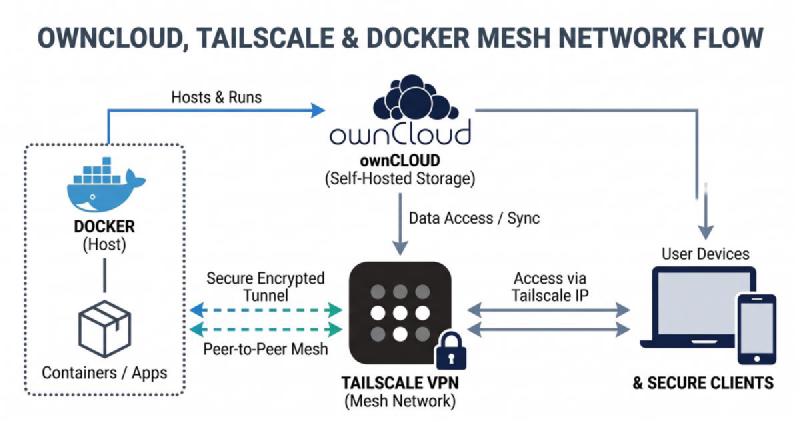
Before touching ownCloud, the foundational infrastructure must be secure. Tailscale creates an excellent secure mesh network, but to avoid browser warnings and strict OAuth rejections, you need proper SSL certificates.
- Install Tailscale on your OpenMediaVault (OMV) host and all client devices that need access.
- Enable MagicDNS and HTTPS Certificates in your Tailscale admin console.
- Generate the SSL certificates on your OMV host using the Tailscale CLI:
sudo tailscale cert <your-tailnet-domain>- Move the resulting .crt and .key files into a directory accessible by your Nginx reverse proxy (e.g., /etc/ssl/certs/).
Step 2: Configuring Nginx to Pass the Correct Port#
When running Nginx on a non-standard port (like 8080), it has a habit of stripping the port number before passing traffic to the internal Docker container (which might be running on 8081). When the port is stripped, ownCloud’s ability to generate valid OAuth links is completely broken.
Update your Nginx configuration block to explicitly pass the host, protocol, and port:
location / {
    proxy_pass http://127.0.0.1:8081;

    # Crucial: $http_host preserves the port, unlike $host
    proxy_set_header Host $http_host;
    proxy_set_header X-Real-IP $remote_addr;
    proxy_set_header X-Forwarded-For $proxy_add_x_forwarded_for;
    proxy_set_header X-Forwarded-Proto https;
    proxy_set_header X-Forwarded-Port 8080;
}
Step 3: Hardcoding Trust in the Docker Compose Stack#
ownCloud will stubbornly reject those Nginx headers—and throw endless “Untrusted Domain” errors—unless explicitly told to trust the proxy.
If you are deploying via Portainer, manually editing config.php inside the container will not work because the container overwrites the configuration file on every restart based on its environment variables. You must define the environment variables directly in your Portainer stack / docker-compose.yml:
environment:
  # Blanket-trust the Docker internal subnets and the local machine
  - OWNCLOUD_TRUSTED_PROXIES=127.0.0.1,172.16.0.0/12,192.168.1.10

  # Whitelist the domain with and without the port
  - OWNCLOUD_TRUSTED_DOMAINS=192.168.1.10,your.tailnet.domain,your.tailnet.domain:8080

  # Force OAuth to generate secure URLs
  - OWNCLOUD_OVERWRITE_PROTOCOL=https
  - OWNCLOUD_OVERWRITE_HOST=your.tailnet.domain:8080
  - OWNCLOUD_OVERWRITE_CLI_URL=https://your.tailnet.domain:8080
This locks in the network paths and forces the server to generate https:// URLs, preventing the desktop client from receiving blank authorization links.
Step 4: The Silver Bullet — Downgrading the Desktop App#
Even with a flawless server configuration, modern versions of the ownCloud Desktop Client (like v7.1.1) have known bugs when handling OAuth browser redirects over non-standard reverse-proxy ports. The app will successfully launch the browser for authorization but completely fail to capture the returning token, leaving you with a blank screen.
The definitive fix is entirely client-side:
- Uninstall the v7.1.x desktop client.
- Wipe the lingering application cache by deleting the %APPDATA%\ownCloud folder (Windows) or ~/Library/Application Support/ownCloud (macOS).
- Install the older version of ownCloud Desktop Client v6.0.3.
Conclusion: The Reverse Proxy Reality Check#
Setting up a self-hosted cloud is rarely a straight line, especially when stacking networking layers like Docker bridge networks, Nginx reverse proxies, and Tailscale meshes. When authentication loops occur, the instinct is often to tear down the server and start over.
As this setup proves, the solution usually lies in the quiet details: a dropped port in an Nginx header, a Docker environment variable aggressively overwriting a config file, or a bleeding-edge desktop client pushing an untested authentication policy. By explicitly passing your port headers, hardcoding your trusted proxies in your compose file, and rolling back to a stable client release, you regain total control over your private cloud. Your data remains secure behind Tailscale, and your desktop sync works flawlessly.
Need help with your website, SEO or digital marketing? Get in touch with The Island Monkeys.